> For the complete documentation index, see [llms.txt](https://docs.chizy.io/llms.txt). Markdown versions of documentation pages are available by appending `.md` to page URLs; this page is available as [Markdown](https://docs.chizy.io/features/integrations/zendesk-integration.md).
# Connect Zendesk Support
Already run your customer support through Zendesk? Connect it to Chizy so that when the AI can't resolve a conversation, it opens a Zendesk ticket for your team — with the customer's details and the full chat attached. Your shoppers get a clear "we'll be in touch" message, and the AI keeps helping in the meantime.
{% hint style="info" %}
**Available on the Growth plan and above.** If you're on a lower plan, upgrade from **Settings → Pricing** to unlock the Zendesk integration.
{% endhint %}
#### How it works
When a customer needs a person, Chizy opens a Zendesk ticket automatically. This happens when:
* A customer **asks to speak to a human**, or
* The **AI can't confidently answer** and the customer agrees to be connected.
The AI lets the customer know your support team has been notified and will follow up by **email** — then carries on helping with anything else. Your team picks up the ticket in Zendesk and replies the way they normally would. Chizy never goes silent on the customer.
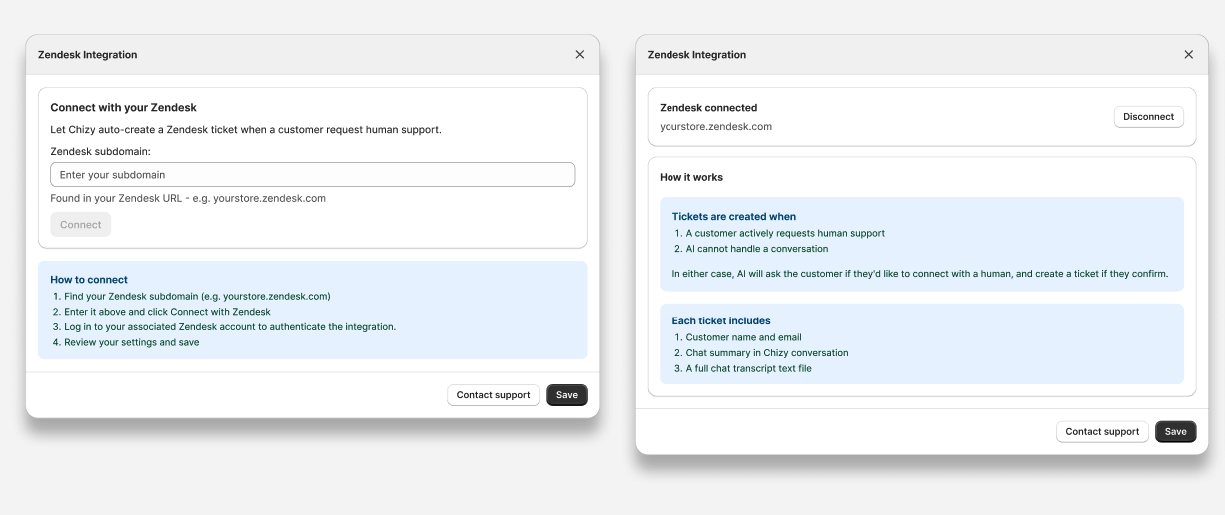
**Each ticket includes:**
* The customer's name and email
* A short summary of the conversation
* The full chat transcript, attached as a text file
#### Step 1: Open the Zendesk integration
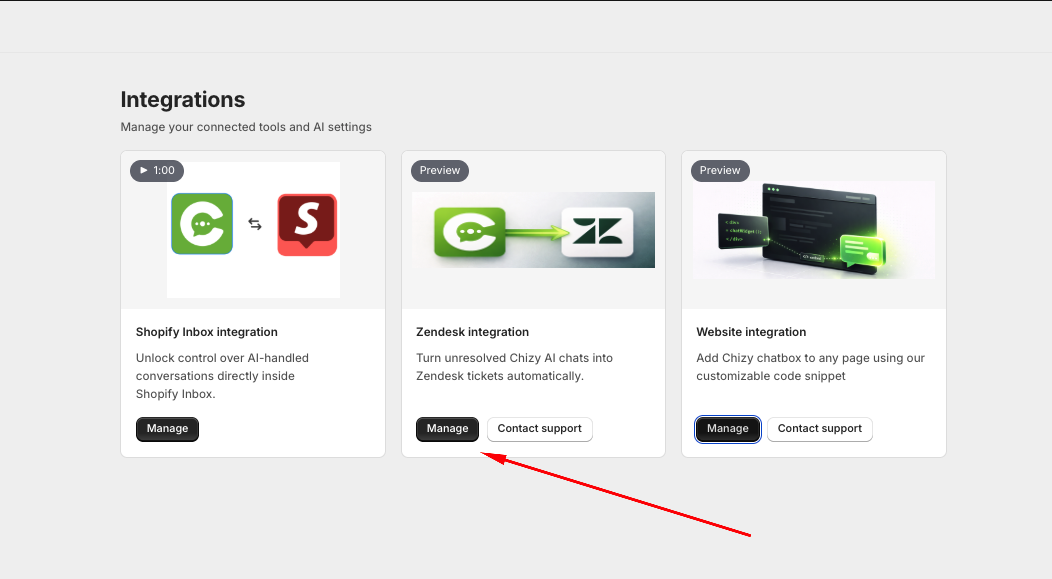
1. In your Shopify admin, open Chizy and go to **Advanced Features → Integrations**.
2. On the **Zendesk integration** card, click **Manage**.
#### Step 2: Connect your Zendesk account
1. Enter your **Zendesk subdomain**. This is the first part of your Zendesk web address — for example, if you sign in at `yourstore.zendesk.com`, enter `yourstore`.
2. Click **Connect**.
3. Log in to your Zendesk account when prompted, and approve access so Chizy can create tickets for you.
4. Back in Chizy, review **How it works** and click **Save**.
Once connected, the card shows **Zendesk connected** with your subdomain. New conversations can now turn into Zendesk tickets.
#### Good to know
* **The AI keeps working.** Opening a ticket doesn't hand the live chat over — the customer can keep chatting with Chizy while your team follows up by email.
* **If you also use Shopify Inbox handoff.** Chizy connects the customer to a live agent first. If no one is available, it opens a Zendesk ticket so the request still reaches your team.
* **Your plan controls access.** If you downgrade below Growth, Chizy stops creating new Zendesk tickets. Tickets already in Zendesk are unaffected.
#### Disconnect Zendesk
To stop creating new tickets, open the **Zendesk integration** card, click **Manage**, then click **Disconnect**. To turn it back on later, you'll re-enter your subdomain and reconnect.
#### Need a hand?
Open the **Zendesk integration** window and click **Contact support**, or reach out to the Chizy team — we're happy to help you get connected.